
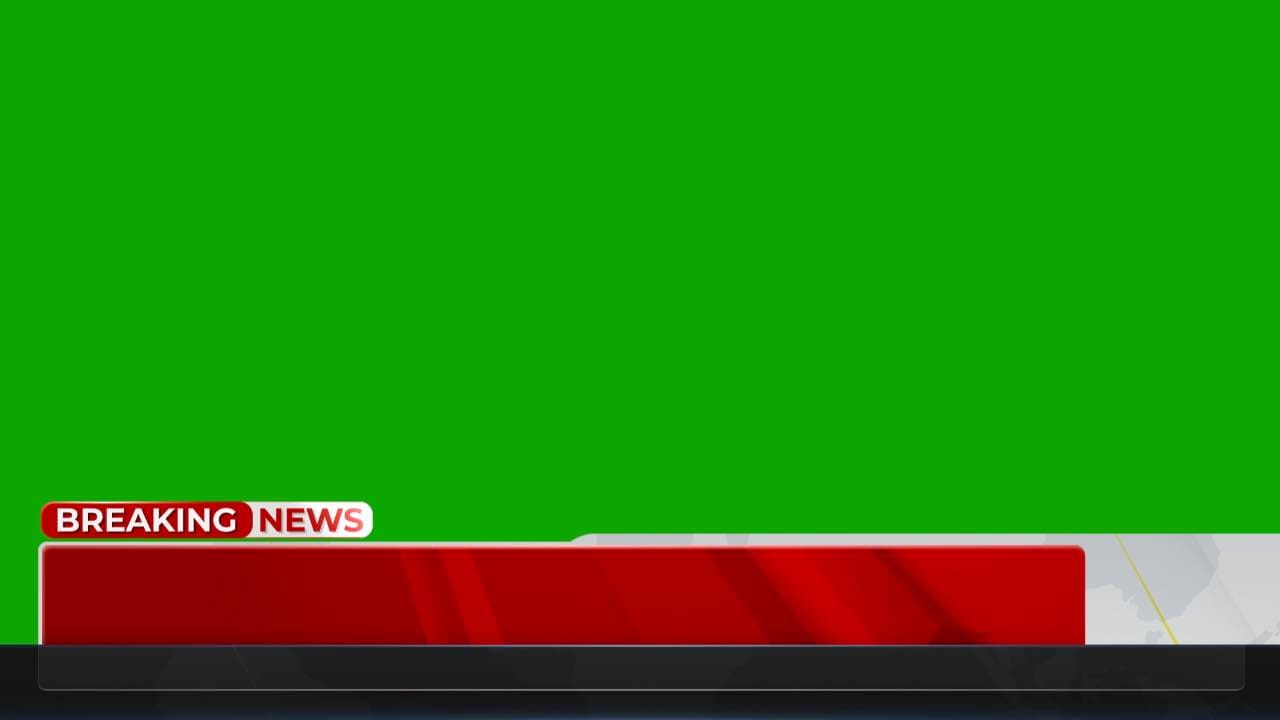
Hey creators! Do you want to add some serious drama, a realistic parody, or a fun meme to your next video? You are in the right place. Today, I am giving away my custom Breaking News CapCut Template. This high-quality green screen video makes your content look like a professional live broadcast instantly.
I designed this template with a bold red and white color theme to grab attention. It features realistic flashing studio lights and a smooth breaking news animation. It also includes a clean news lower third graphic where you can easily overlay your own text or headlines.
Watch the full preview in the video below, and grab your free download file at the bottom of this page!
Why You Need This Breaking News Green Screen Asset
Static videos can get boring quickly. Using a dynamic video overlay keeps your audience engaged.
- Professional Design: The vibrant red and white theme mimics real news networks.
- Eye-Catching Animations: Built-in flashing lights and smooth movement transitions command attention.
- Ready-Made Lower Third: Save hours of editing with a pre-made graphic for your headlines.
- Universal Compatibility: The clean green screen background works flawlessly in almost any editing software.
How to Remove Green Screen Using Chroma Key
Using this template is incredibly easy. You just need to use the Chroma Key effect to clear out the green color. Here is a quick step-by-step tutorial for the most popular video editing apps.
Using in CapCut (Mobile & PC)
- Open CapCut and start a new project with your main background video.
- Tap on Overlay and select Add Overlay. Choose the downloaded breaking news template.
- Select the overlay track and scroll through the bottom toolbar to find Cutout or Chroma Key.
- Use the color picker tool to select the green screen color.
- Increase the Intensity and Shadow sliders until the green color disappears completely.
- Add a text layer over the lower third graphic to write your custom headline.
Using in KineMaster
- Open KineMaster and import your primary footage into the main timeline.
- Tap on the Layer button and select Media. Import the green screen news video.
- Select the template layer on your timeline to open the options menu on the right.
- Scroll down and tap on Chroma Key, then toggle the switch to Enable.
- Adjust the two percentage sliders to clean up any leftover green edges.
- Use the text layer tool to place your breaking news title directly on top of the lower third.
How to Use in Other Software (Premiere Pro, VN, Filmora)
The logic stays exactly the same for other video editors. Import your main footage first. Place the breaking news overlay on the track directly above your main video. Search your effects panel for Chroma Key, Ultra Key, or Green Screen. Use the color picker pipette on the green area, adjust the tolerance settings, and you are ready to export!
Free Breaking News Template Download Link
Ready to level up your video editing game? Click the secure link below to download the asset directly to your device.
Note: This asset is free to use in your personal and commercial YouTube videos. If you use it, a link back to this article or my YouTube channel is always highly appreciated!