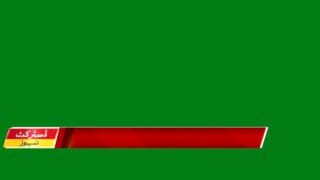
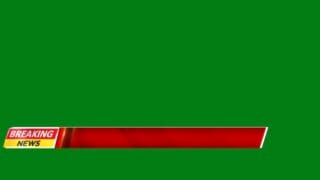
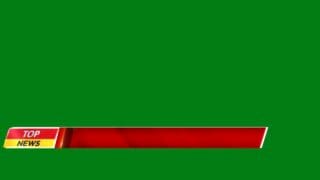
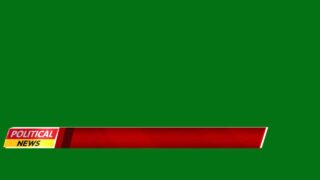
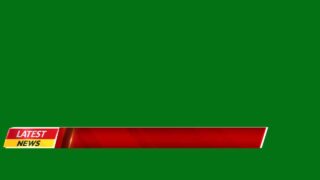
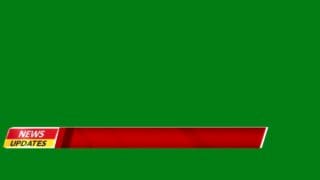
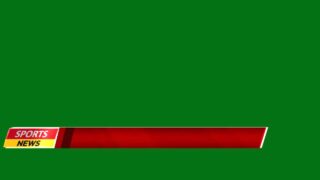
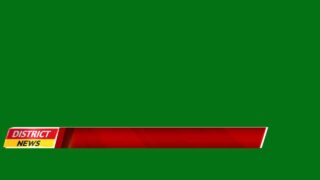
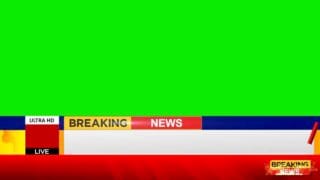
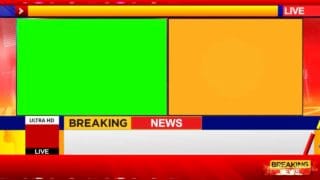
Stop scrolling and take a close look at your viewer retention stats. Do your videos need a major engagement boost? I have the perfect solution for you today. You can download my premium viral breaking news video template for CapCut absolutely free.
I created this specific overlay to give your content an instant high-budget feel. It features a bold red and white color theme that perfectly mimics major television networks. The asset includes realistic flashing studio lights, a dynamic breaking news animation, and a clean lowerthird graphic for your custom text.
Check out the full breakdown below, follow the quick tutorial, and grab your free file download.
Upgrade Your Content with Professional News Overlays
Visual hooks drive the social media algorithm. When you drop a realistic breaking news animation into your video timeline, your audience immediately stops scrolling.
This green screen asset works wonders for comedy skits, gaming clips, commentary videos, or urgent channel announcements. The built-in lowerthird gives you a dedicated space to type out funny headlines or serious updates. Additionally, the vibrant red and white studio lights create an authentic broadcast atmosphere that keeps eyes glued to the screen.
How to Apply the Chroma Key Effect in Any Editor
You do not need advanced editing skills to use this media asset. The solid green screen background disappears with just a few quick clicks. Here is exactly how to apply the chroma key effect across the most popular video editing apps.
How To Edit in CapCut (Mobile and PC)
- Import your main project video into CapCut first.
- Click the overlay tool and choose this green screen news template.
- Select the overlay clip on your timeline and locate the cutout menu.
- Choose the chroma key option and use the color picker on the green background area.
- Turn up the intensity slider to remove the green color completely.
- Place a fresh text layer right over the lowerthird graphic to add your custom news headline.
Editing in KineMaster
- Add your primary background footage to the main media timeline.
- Tap the layer icon, select media, and load the news animation file.
- Click on the chroma key tool in the right-side options panel.
- Toggle the enable switch to turn on the transparent effect.
- Tweak the percentage sliders to remove any remaining green tint around the edges.
- Use the text tool to type your announcement directly onto the red and white lowerthird.
Editing in Other Software (VN, Premiere Pro, Filmora)
The process remains identical across all major editing platforms. Put your background video on track one. Place the breaking news template on track two directly above your footage. Search your effects library for green screen removal keys like ultra key or chroma key. Pick the green color with the dropper tool, adjust the edge smoothness settings, and enjoy your new broadcast look.
Instant Download Link for the News Template
Start creating thumb-stopping content right now. Click the link below to download the high-quality file directly to your phone or computer.
📥 [Download the Viral Breaking News Green Screen Video Here]
I love seeing how you use my editing assets to grow your channels. Drop a comment on my latest YouTube video if this template helps your editing workflow!