
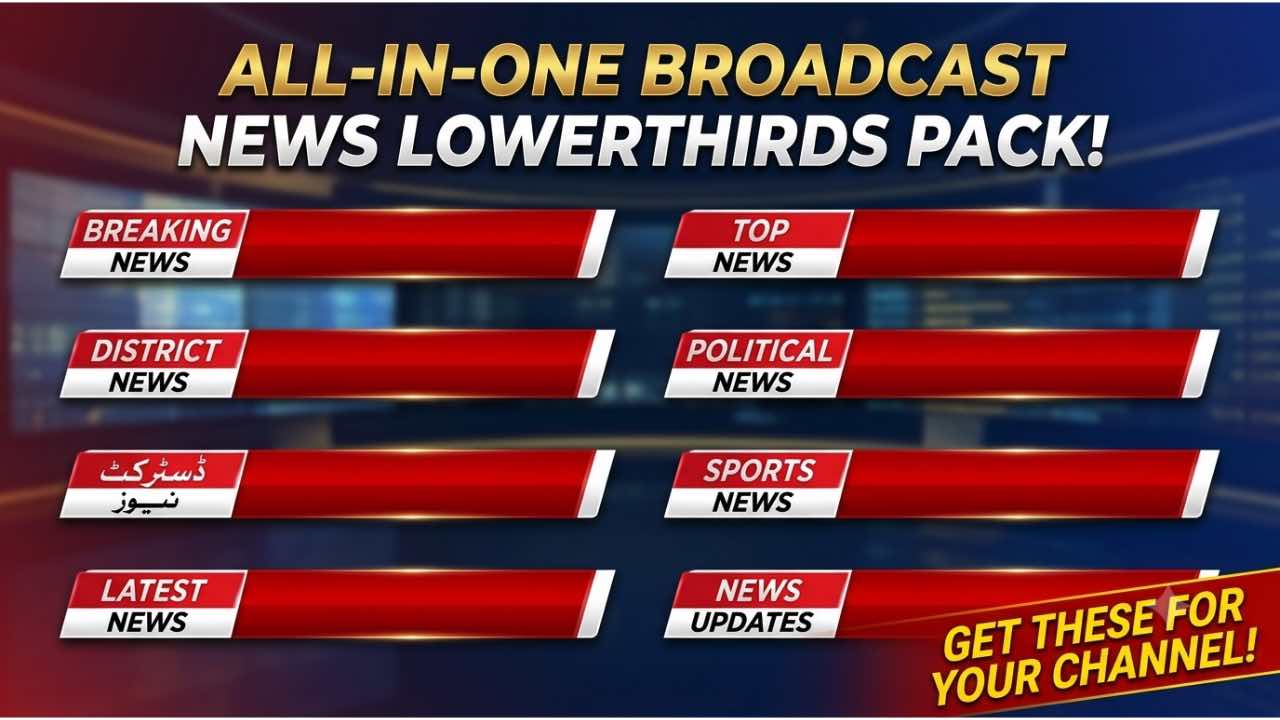
Give your videos a professional broadcast look with this free Full HD lower thirds collection for green screen chroma key. The collection includes animated templates for Breaking News, Top News, Political News, Latest News, News Updates, Sports News, and District News. These ready-to-use overlays can help creators add clear headlines, labels, names, and important updates without building every graphic from scratch.
Whether you create YouTube news videos, Facebook updates, TikTok content, live streams, tutorials, or social media reports, these green screen lower thirds can make your footage look more organized and engaging. Simply place the animation over your video, remove the green background with a chroma key tool, and position the graphic where you want it.
Moreover, the templates work well for creators who use popular mobile and desktop editing workflows. You can use them with CapCut, KineMaster, and other video editors that support chroma key or green screen removal.
Full HD Resolution for Clear Results
Every lower third in this collection is available in Full HD 1920×1080 resolution. As a result, the graphics maintain sharp text and clean edges when you add them to Full HD projects.
High-definition resolution also helps the overlays remain clear on YouTube videos, social media content, presentations, tutorials, and news-style productions. Instead of using a small graphic that becomes blurry after editing, you can work with a properly sized Full HD video overlay.
In addition, the animated designs use strong colors and clear typography. This combination makes the text easier to notice while keeping the lower third visually connected to your main footage.
Breaking News Graphics for Urgent Stories
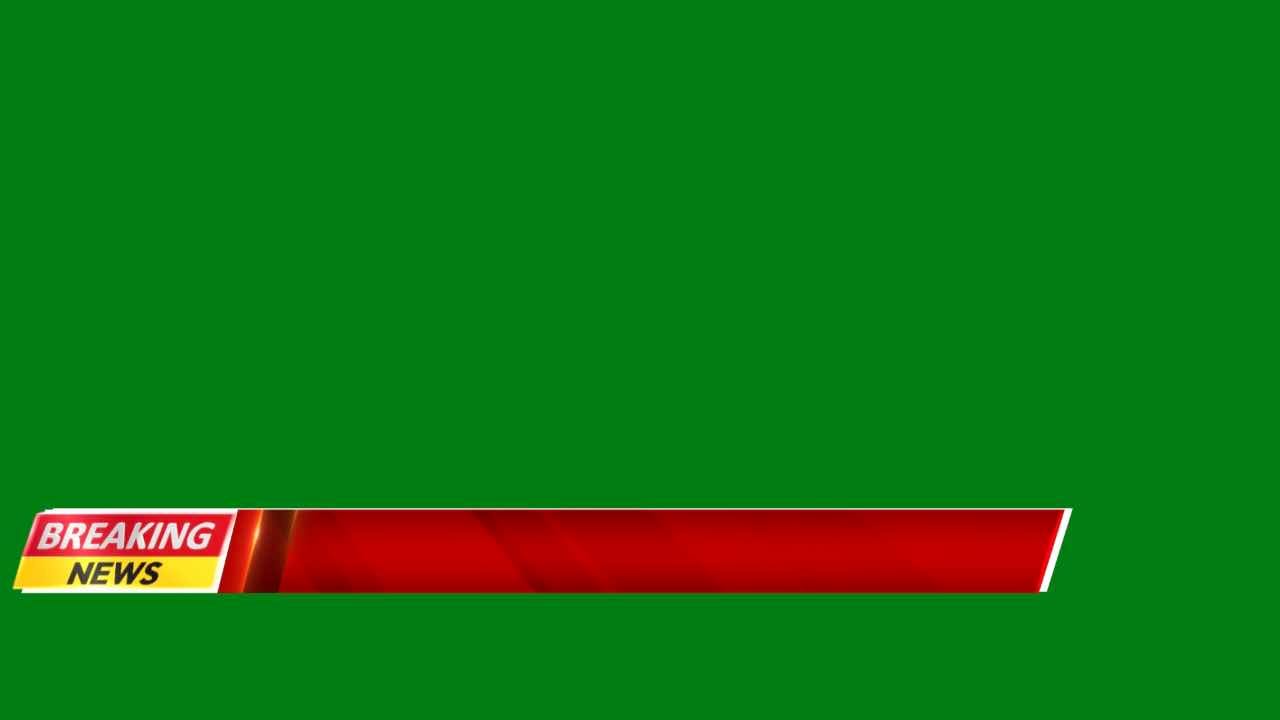
The Breaking News lower third uses attention-grabbing red and yellow elements with bold typography. Its animated design works particularly well when you need to introduce an urgent story, major announcement, or important developing event.
The strong visual treatment helps viewers recognize the purpose of the graphic quickly. You can use the lower-third area for a headline, short update, or reporter information after removing the green background.
Furthermore, the smooth animation allows the graphic to enter and leave the screen naturally. This makes it suitable for news reports, YouTube Shorts, live coverage, and other fast-paced video formats.
Top News Overlay for Important Headlines
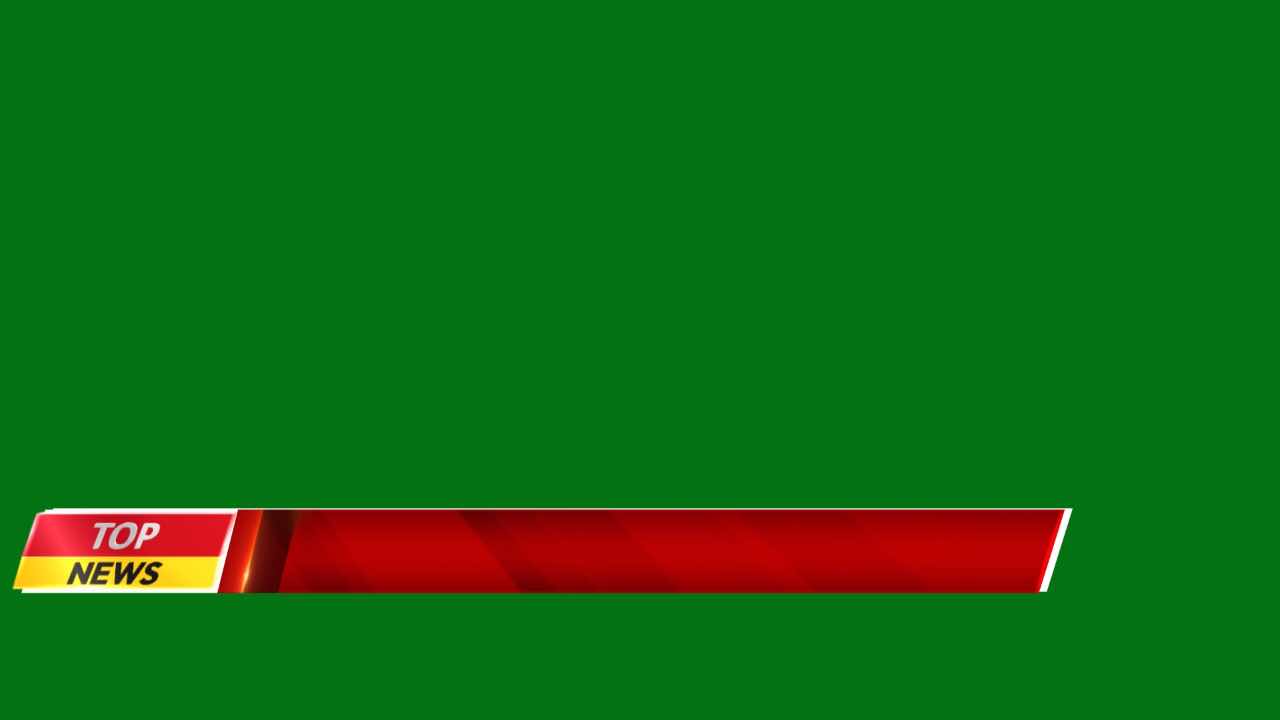
For major stories and trending topics, the Top News lower third provides a bold presentation. It features a red gradient strip combined with prominent TOP NEWS text, creating a recognizable news-style appearance.
You can use this template when introducing your main story or highlighting information that deserves extra attention. Because the design has a clean horizontal layout, it can sit comfortably near the bottom of your video without covering the main subject.
After applying chroma key, adjust the position and scale according to your footage. You can also combine it with additional text, transitions, and other graphics to create a complete news presentation.
Political News Banner for News Coverage
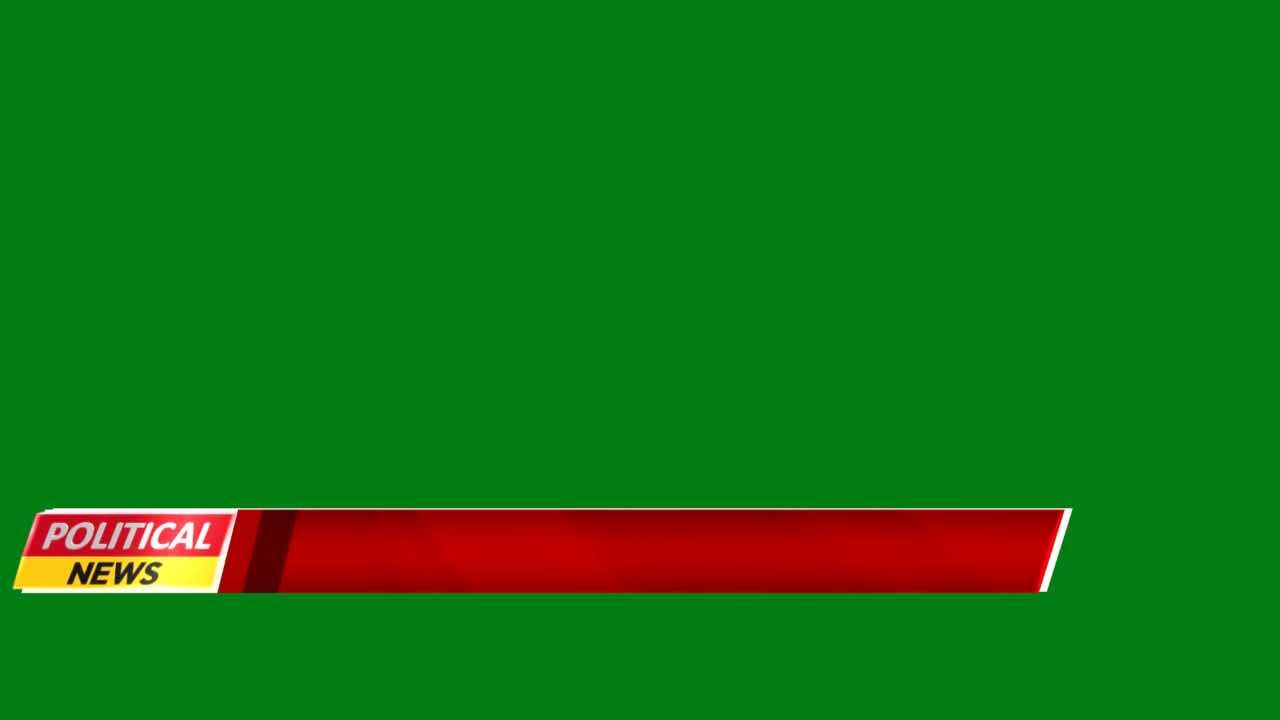
The Political News lower third features a strong red and yellow broadcast-inspired design. It can fit political discussions, election-related coverage, interviews, debates, commentary, and general current-affairs videos.
For example, you can use the overlay to introduce a political topic, identify a speaker, or display a short headline. The bold typography keeps the message easy to recognize while the animated movement adds visual interest.
Because the template uses a green screen background, you can easily integrate it into your existing footage. Just remove the green area and position the banner along the lower portion of the frame.
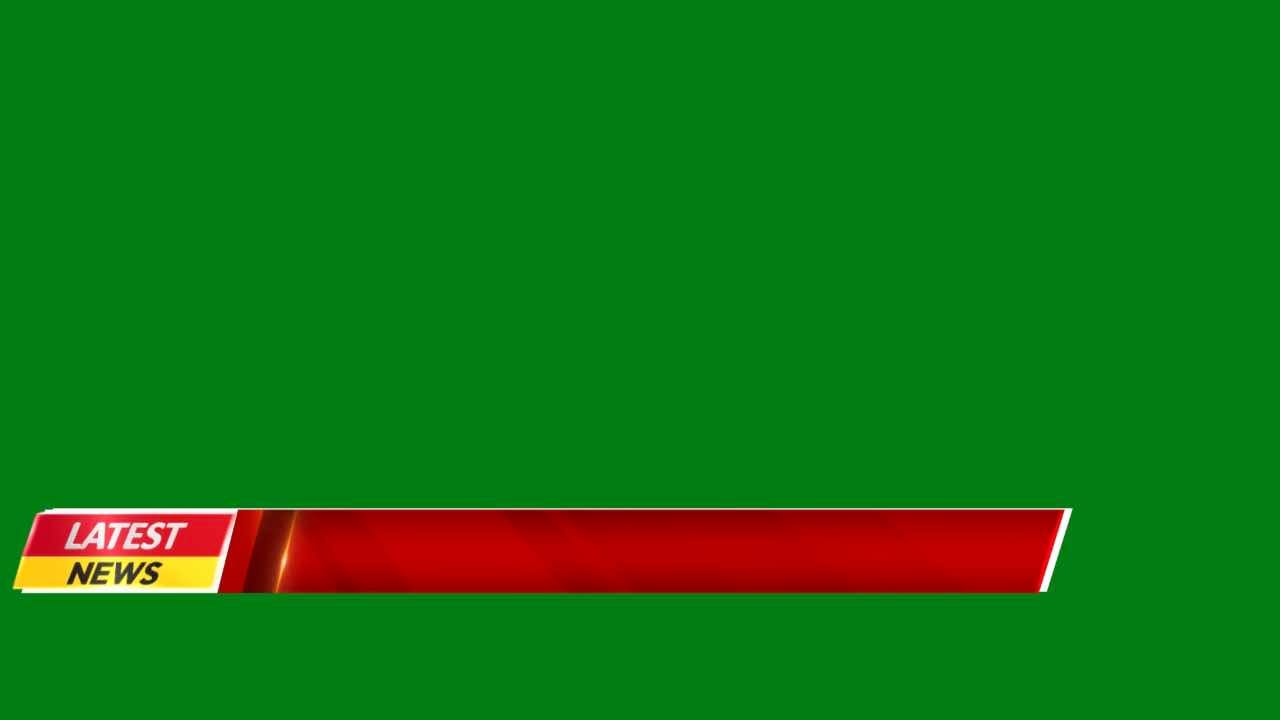
Latest News Design for Current Updates
The Latest News lower third gives creators another option for presenting fresh stories and current updates. Its red and yellow highlights create a modern news appearance while the animation keeps the graphic active on screen.
This template can work well for YouTube news channels, short-form reports, social media updates, and video bulletins. You can also combine it with newsroom footage, reporter clips, interviews, or stock video.
Additionally, the simple layout makes it easier to maintain readability. Keep your headline short and direct, then adjust the graphic size so viewers can read the information without losing focus on the main video.
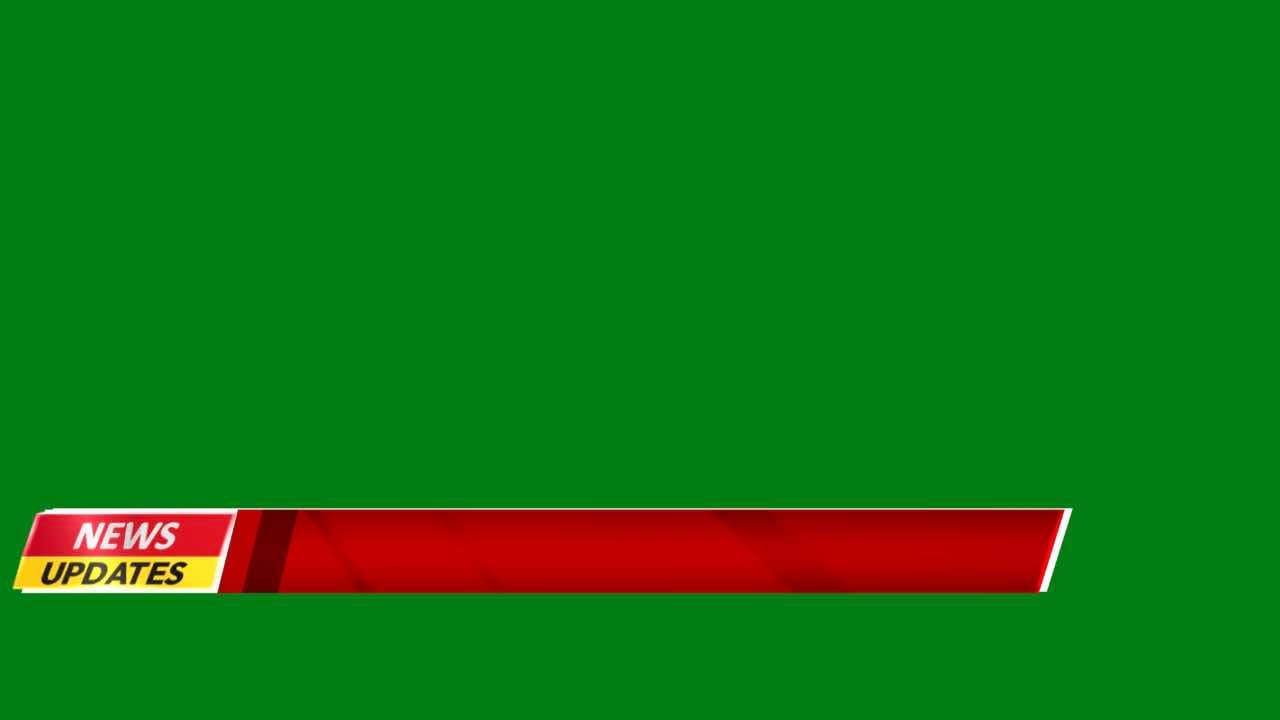
News Updates for Continuous Coverage
The News Updates lower third is designed for videos that deliver frequent or continuing information. Its bold text and smooth animation make it useful for rolling updates, live coverage, announcements, and social media news content.
Instead of displaying large blocks of text, use short phrases that communicate the key point quickly. This approach keeps your lower third clean and allows viewers to understand the update while continuing to watch the main footage.
What’s more, you can reuse the template throughout a video whenever a new update requires attention. Maintain consistent positioning and sizing to create a more professional visual style across your entire project.
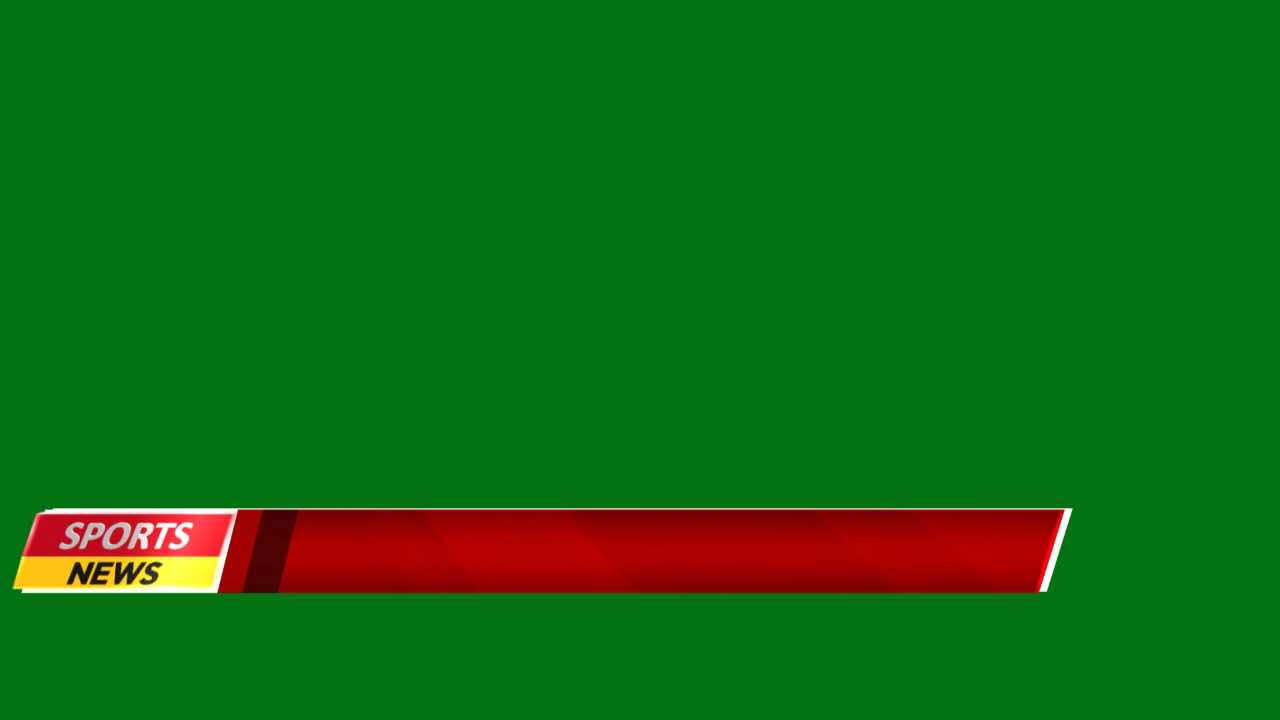
Sports News Animation for Exciting Content
Sports videos need graphics that match their fast-moving nature. The Sports News lower third uses bold typography and vibrant visual elements to give sports coverage a more energetic appearance.
You can use this overlay for match updates, player information, sports headlines, highlights, commentary videos, tournament coverage, and fan-focused content. It can also help separate different sections of a longer sports video.
For better results, place the lower third where it does not cover important action. When working with sports footage, timing also matters. Match the appearance and disappearance of the animation with natural pauses or transitions in your video.
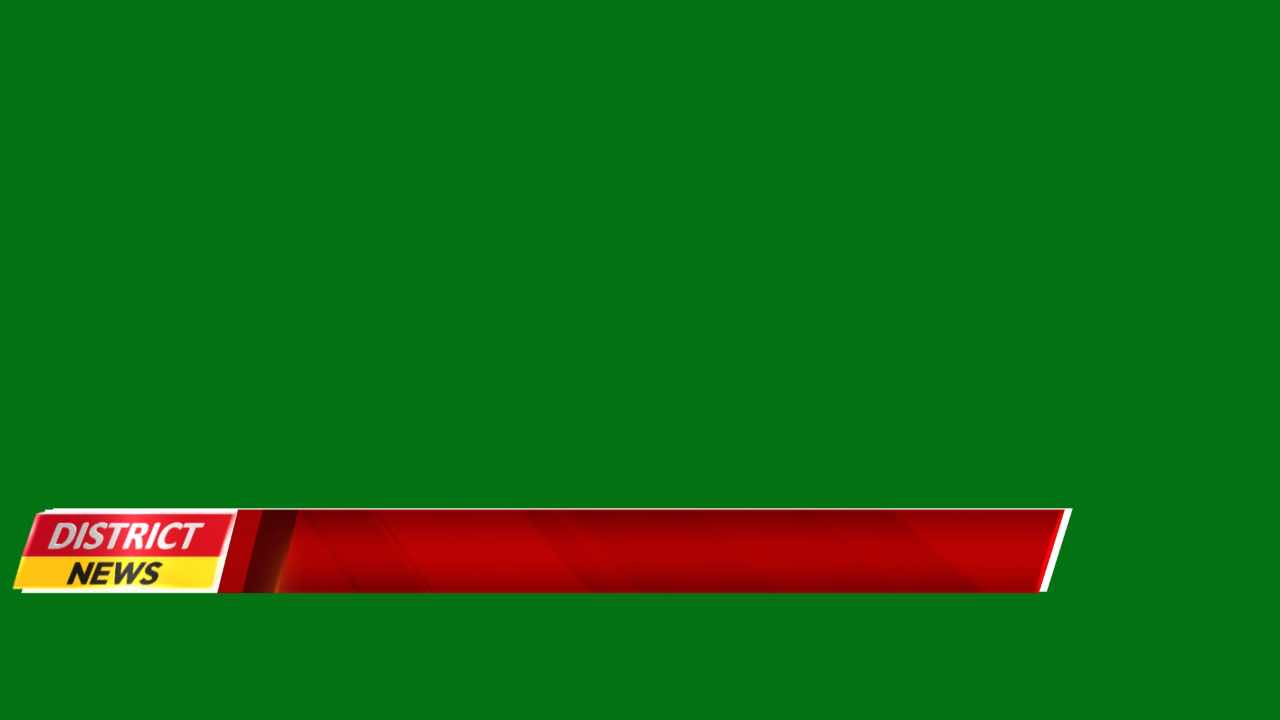
District News Template for Local Reporting
The District News lower third focuses on local and regional coverage. Its clean layout and strong color combination make it suitable for community news, district-level reports, local announcements, and regional updates.
Local creators can use this type of graphic to introduce a location, display a headline, identify a reporter, or highlight a community story. It can also give smaller news channels a consistent visual identity without requiring complicated motion-graphics software.
Because the template uses green screen technology, you can place it over different types of footage. Whether your video shows an interview, outdoor report, event, or local location, the overlay can become part of the same visual package.
Download District News Urdu Lower Third
Using the Lower Thirds in CapCut
Using these green screen lower thirds in CapCut is straightforward. First, import your main video into a new project. Next, add the selected lower-third video as an overlay or additional video layer.
After that, open the chroma key feature and select the green background. Adjust the available settings until the green area disappears while the graphic remains clean and sharp. Then move the lower third toward the bottom of your video.
You can also adjust the size and timing to match your project. If necessary, trim the overlay so it appears only when you need it. Finally, preview the entire section before exporting to make sure the animation does not cover important information.
Adding the Templates to KineMaster
KineMaster also provides a convenient workflow for green screen video overlays. Start by opening your project and importing the main footage. Then add the lower-third video as a new layer.
Once the overlay appears on the timeline, activate the Chroma Key option and remove the green background. Fine-tune the settings if you notice any remaining green edges around the graphic.
Next, resize and position the lower third along the bottom of the frame. You can change the duration of the overlay and combine it with other transitions when necessary. Before exporting, watch the section several times to check the text, animation timing, and overall placement.
Tips for Better Green Screen Results
Although chroma key editing is simple, a few adjustments can improve the final result. First, choose a lower third that matches the style and purpose of your video. A sports graphic may suit a match update, while a district design may work better for local reporting.
Second, keep your text short. Lower thirds work best when viewers can understand the message within a few seconds. Avoid filling the entire banner with long sentences.
Third, maintain consistent positioning throughout the video. If one lower third appears too high and another sits too low, the project can look less organized. Therefore, choose a comfortable position and use it consistently.
Finally, preview the chroma key result before exporting. Look closely at the edges of the graphic and make sure the green background has disappeared completely.
Who Can Use These News Overlays?
This collection can help a wide range of video creators. YouTube news channels can use the graphics for headlines and updates, while Facebook creators can add them to short reports and community videos. TikTok creators can also use short lower-third animations to introduce topics or provide quick information.
Likewise, teachers, tutorial creators, local reporters, sports channels, vloggers, and live-stream creators can use these overlays whenever they need a professional-looking information banner.
Most importantly, the templates save editing time. Instead of designing every animated lower third manually, you can choose a suitable template, remove the green background, add your information, and continue editing.
Usage and Fair Use Information
Important: These videos are provided for use according to the terms specified by MTC Tutorials. Only subscribers of MTC Tutorials are allowed to use these videos on YouTube. For use on other platforms, please follow the official MTC pages listed below.
- Facebook: MTC VFX Official
- TikTok: @mtc.vfx
Please review the applicable usage terms before publishing content that includes these assets. If you plan to use the templates outside the stated platforms or conditions, check the latest instructions provided by MTC Tutorials.
Why Green Screen Lower Thirds Save Editing Time
Creating animated broadcast graphics from the beginning can take considerable time, especially when you need multiple styles for different types of videos. Ready-made lower thirds provide a practical alternative.
With these templates, you can focus on your story instead of spending hours creating basic animations. The green background also makes the overlays easy to separate from the main footage using chroma key tools available in many modern editors.
As a result, beginners can start creating professional-looking news graphics without advanced motion-graphics knowledge. Experienced editors can also use the templates as a quick starting point when they need to finish a project faster.
Final Thoughts on the Free Lower Thirds Collection
This free Full HD lower thirds collection gives video creators a practical set of animated green screen overlays for different types of content. From Breaking News and Top News to Sports News and District News, each template serves a specific purpose.
With 1920×1080 Full HD resolution, bold typography, smooth animation, and chroma key compatibility, these graphics can help improve the presentation of YouTube videos, social media content, news reports, tutorials, and live streams.
Choose the template that matches your topic, import it into your preferred video editor, remove the green background, and place the graphic at the bottom of your footage. With a few simple adjustments, you can create a cleaner and more professional news-style presentation.
If you regularly create news or information-based videos, keep this collection available as part of your editing resources. Subscribe to MTC Tutorials for more free video templates, green screen graphics, motion graphics resources, and editing tutorials.